Enterprise DDR5 memory & ultra-fast NVMe storage for high-performance hosting.
See plansChoosing the Right Minecraft Server Software (Paper vs Purpur vs Fabric vs Forge)
Selecting the right server software is one of the most critical decisions when deploying a server on Minecraft Hosting. The software engine you choose determines your server's single-core tick performance, plugin and mod compatibility, and overall player capacity.
The QeinTech Console includes a built-in Version Changer that lets you switch between Paper, Purpur, Fabric, Forge, Spigot, Vanilla, and proxy software with automatic Java runtime configuration.
Server Software Comparison
Different gameplay styles require different server software engines. Here is an overview of the most popular Minecraft engines available on QeinTech:
- Paper: The industry standard for high-performance multiplayer. Features async chunk loading, entity tick optimizations, and full support for Bukkit/Spigot plugins while maintaining a stable 20.0 TPS.
- Purpur: A high-performance drop-in fork of Paper designed for deeper gameplay customization. Includes granular configuration for mob AI, ridable mobs, and custom player mechanics.
- Fabric: The modern, ultra-lightweight modding platform. Delivers fast startup times and minimal memory footprint, ideal for modern technical SMPs and server-side optimization mods.
- Forge / NeoForge: The traditional heavy modding engine with extensive API hooks. Best suited for large, complex modpacks containing hundreds of technical, magic, or adventure mods.
- Velocity / BungeeCord: High-throughput proxy engines used to link multiple backend servers into a seamless network.
- Vanilla: The official server software from Mojang. Recommended only if you require strict 100% vanilla bug-for-bug parity without performance optimizations.
Step 1: Access the Version Changer
Log in to the QeinTech Console, select your Minecraft server instance, and navigate to the Version or Software Changer tab in the panel navigation.

1. Open Your Server Console
From your main dashboard in the QeinTech Console, select the active Minecraft instance you wish to configure.
2. Locate the Software Manager
Click on the 'Software' or 'Version' tab in the navigation bar to open the server engine catalog.
Step 2: Select Software Type & Minecraft Version
Browse the catalog of supported software engines. Select the category (such as Paper, Fabric, or Forge), then pick your desired Minecraft game version and build.
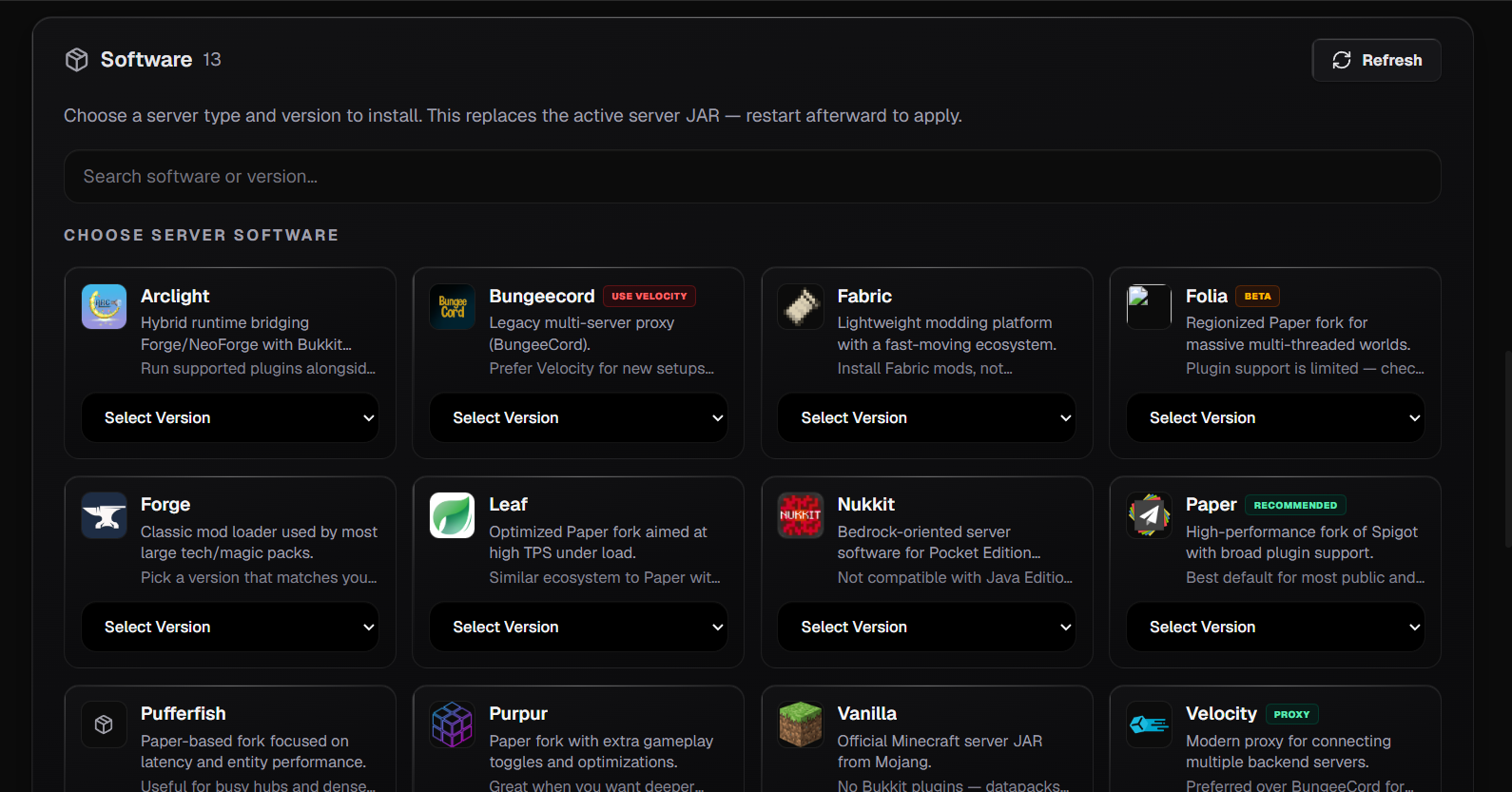
1. Choose Your Software Category
Select Paper or Purpur for plugin servers, Fabric or Forge for modded servers, or Velocity for proxies.
2. Pick the Game Version
Select your target Minecraft release (e.g., 1.21.x, 1.20.x). The panel will automatically pair the correct Java runtime (Java 21, 17, or 8).
Step 3: Confirm and Launch
Review your selection and confirm the installation. The panel will automatically download the server jar, update startup parameters, and prepare the engine.

1. Confirm Installation
Click 'Install' or 'Change Version'. If you want a fresh setup, you can optionally toggle the clean install option.
2. Start the Server
Head back to the Console tab and click Start. Watch the live terminal logs as the new jar initializes your worlds.
Important Considerations Before Switching
- Always create a backup: Before changing software types, generate a full backup in the Backups tab.
- World compatibility: Worlds generated on modded servers containing custom blocks will lose those items if loaded on Paper or Vanilla.
- Java Version Auto-Detection: QeinTech automatically configures the appropriate Java runtime environment.
- Need help deciding? Join our Discord Community for advice from experienced server administrators.
Still have questions?
Our engineering team and Discord community are available 24/7.